





Site Setup
Creating website footer
-
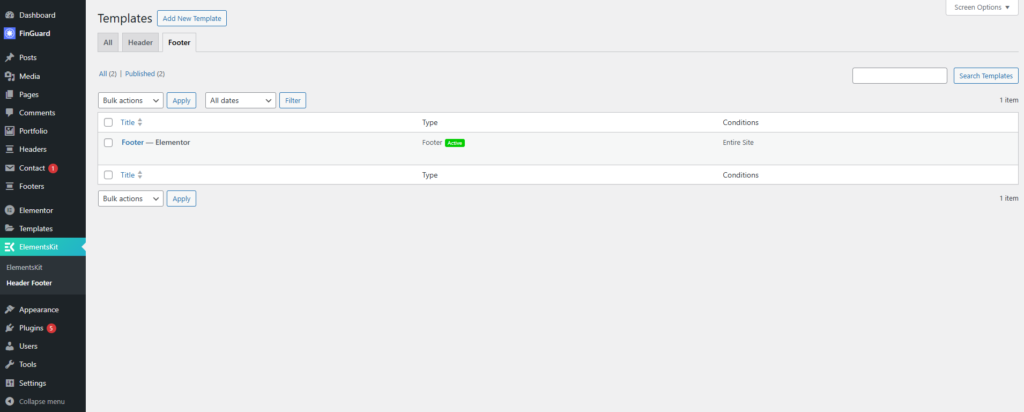
Go to your site admin area -> Footers.
-
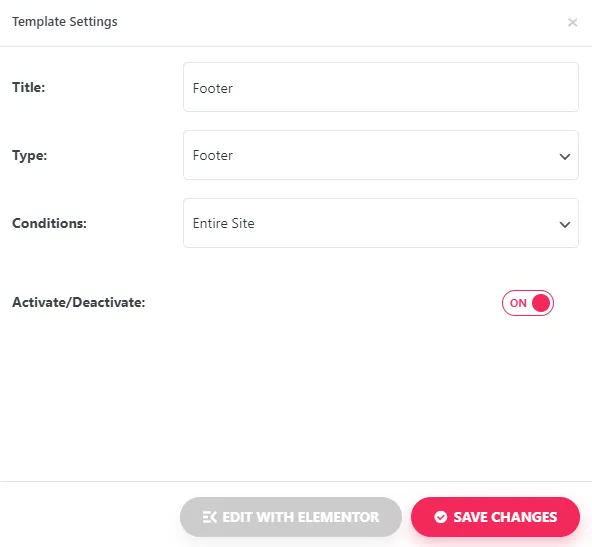
Open the Footer template and click the Edit with Elementor button to start customizing.
Global footer options
Global footer settings are accessible at Theme Options -> Layout -> Footer:
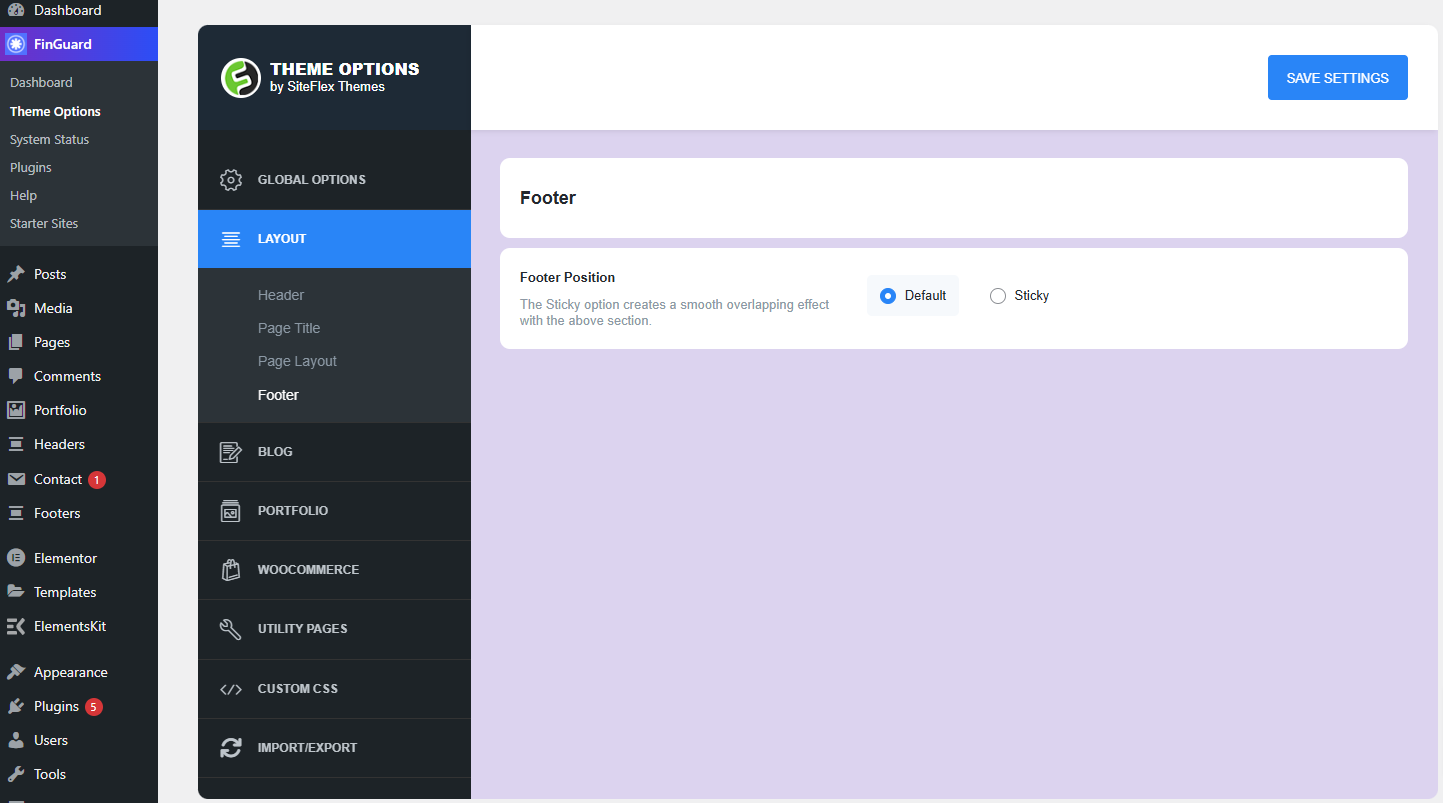
- Footer Position: Choose between Default (position relative) or Sticky (fixed at the bottom of the page).
Page-level footer options
Footer options can be customized on the page-level using Elementor.
Edit any page with Elementor -> click the Cog Icon at the bottom left of your screen -> switch to the Style Tab -> Open Footer settings:
- Disable Sticky Position: Turn off the sticky footer position for this specific page.
These options grant you extensive control over your site’s footer appearance and behavior. Customize it according to your preferences, ensuring a seamless blend of functionality and design on every page.
